

It's common to find duplicate Product entities in your structured data. In this guide, we use Google's Rich Results Test to show that, as long as they are correctly linked, duplicate Product entities get merged together. Without the link, they Google will only use one Product listing, potentially impacting your SEO.
Common causes
Most often, multiple Product entities are created due to conflicting plugins from your ecommerce platform or content management system (CMS). Based on our recent audits (over 300 ecommerce sites in the last month), we've found that the most common cause is review plugins which insert a second Product entity containing review and rating information, instead of adding the data to the existing entity.
Do duplicate Product snippets impact SEO and GEO?
Having duplicate Products is not necessarily a problem for enabling rich results in Google searches, depending on how they are set up.
Linking via '@id' solves the issue
As long as your Product snippets, have the same '@id' value, Google will merge them and treat them as a single entity.
Google and other search engines create a 'graph' of your schema markup when they crawl your website. Each Product, Review and AggregateRating in your data becomes a node in the graph, which are linked based on their relationship.
When Google finds two Products which have an identical '@id' attribute, it knows that they represent the same node in the graph, and will merge the data from both the Products together.
You must specify the '@id' attribute on both Product items for this to work.
Avoid clashing data, where the same attributes (like name or description) are different on the two Products, because Google may not merge these or pick one.
Let's prove this! Copy the following code into Google's Rich Result Testing tool. Press the 'Code' option, and paste it in. After submitting, you will see that it finds only one Product snippet (it merged them).
1[{
2  "@context": "https://schema.org",
3  "@type": "Product",
4  "@id": "Product1",
5  "name": "Example Product With Offer",
6  "image": "https://image.com",
7  "offers": {
8    "@type": "Offer",
9    "price": "29.99",
10    "priceCurrency": "GBP",
11    "availability": "https://schema.org/InStock",
12    "url": "https://example.com/product-with-offer"
13  }
14},
15{
16  "@context": "https://schema.org",
17  "@type": "Product",
18  "@id": "Product1",
19  "name": "Example Product With Rating",
20  "aggregateRating": {
21    "@type": "AggregateRating",
22    "ratingValue": "4.6",
23    "reviewCount": "124"
24  }
25}]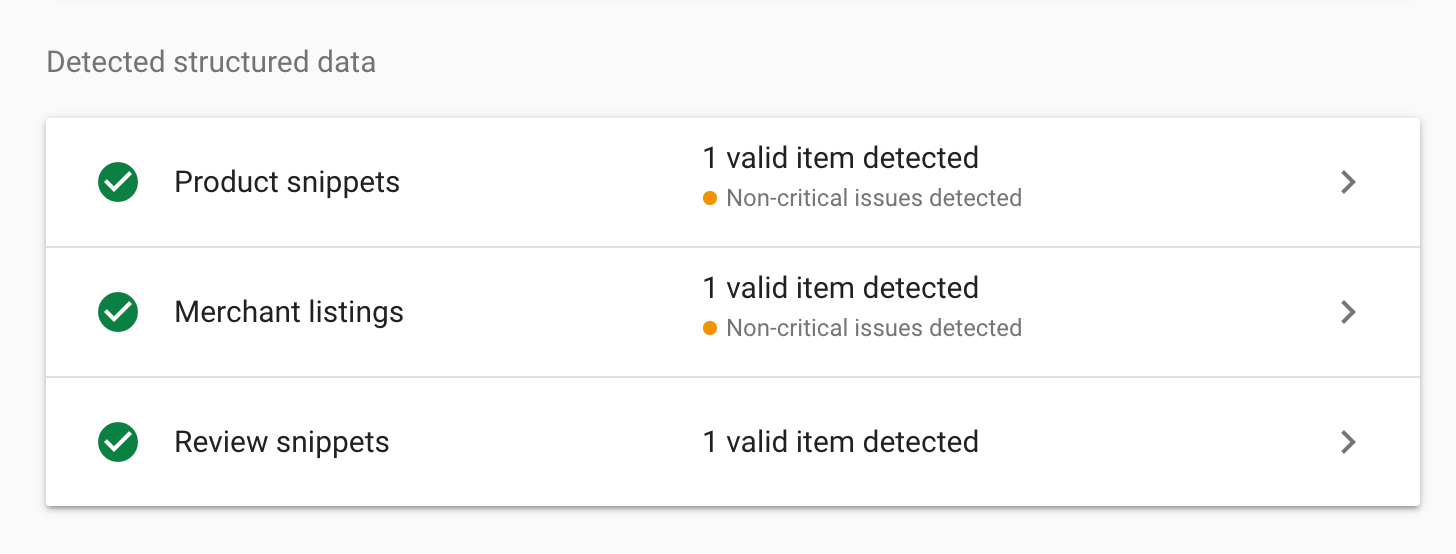
Without the same ID, Google will pick only one Product
When there are multiple competing Product snippets (i.e. they do not share the same '@id' attribute), then Google's rich results will still work - but it will only display the data from one of the Products - negatively impacting your SEO.
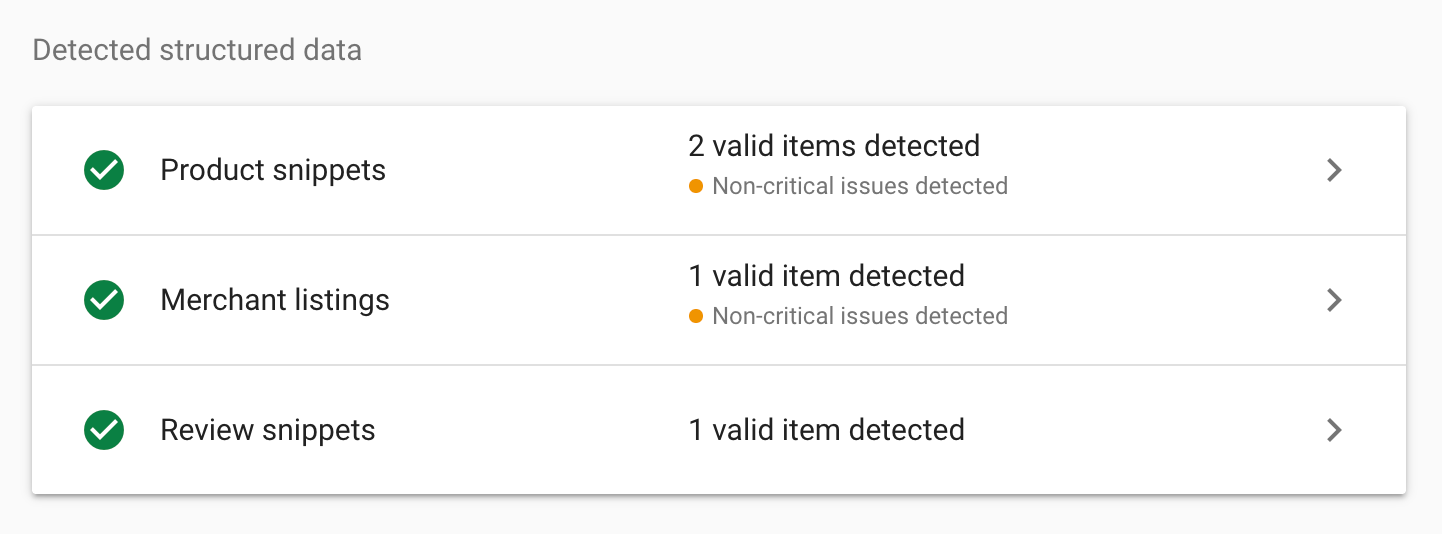
For example, when we remove the '@id' attribute from the example code and run it through the testing tool again, it finds two different products. Only the Product with the 'Offer' is selected for the Merchant Listing.
Generally, it will prioritise based on:
- Product snippet which meets the minimum criteria for a Merchant Listing (it has a name, an image, and an Offer)
- Most complete Product snippet (based on the recommended, but not required) criteria
Use the Rich Result Tool to test which Product is being used
Use Google's Rich Result Testing tool to test which Product is being selected for rich results. You should see multiple Products, but only one Merchant Listing. The Merchant Listing contains data from the selected Product.
For in-depth validation (including flagging when products are unlinked), use retailQ. Our tool crawls your site, finds your product snippets, and validates them against 200+ more thorough checks than the Rich Results Tool.
Handle Product Variants with a ProductGroup snippet
Often, a product page on your website is actually showing many different products, depending on the different colours, sizes or fits. You should create multiple Product snippets for these, but they must be linked together through a ProductGroup snippet. This is Google's preferred way and will enable rich results where users can see different colour/size options within Google Shopping.
Ideally, you place all the Product snippets nested within the ProductGroup's hasVariants attribute. Alternatively, you can link to the ProductGroup using the productGroupID attribute.
It also helps AI understand that the products are linked, and offer the different variants to the user.